

Set up your account
The invitation email from LatentCast has one button, Set up my account. Its link works for 24 hours. Enter your first and last name if the page asks for them, choose a password and press Complete setup. The welcome starts right after.Who presents your stories
Every video needs a presenter: a face and a voice. A Presenter reads the same screen as How do you want to appear?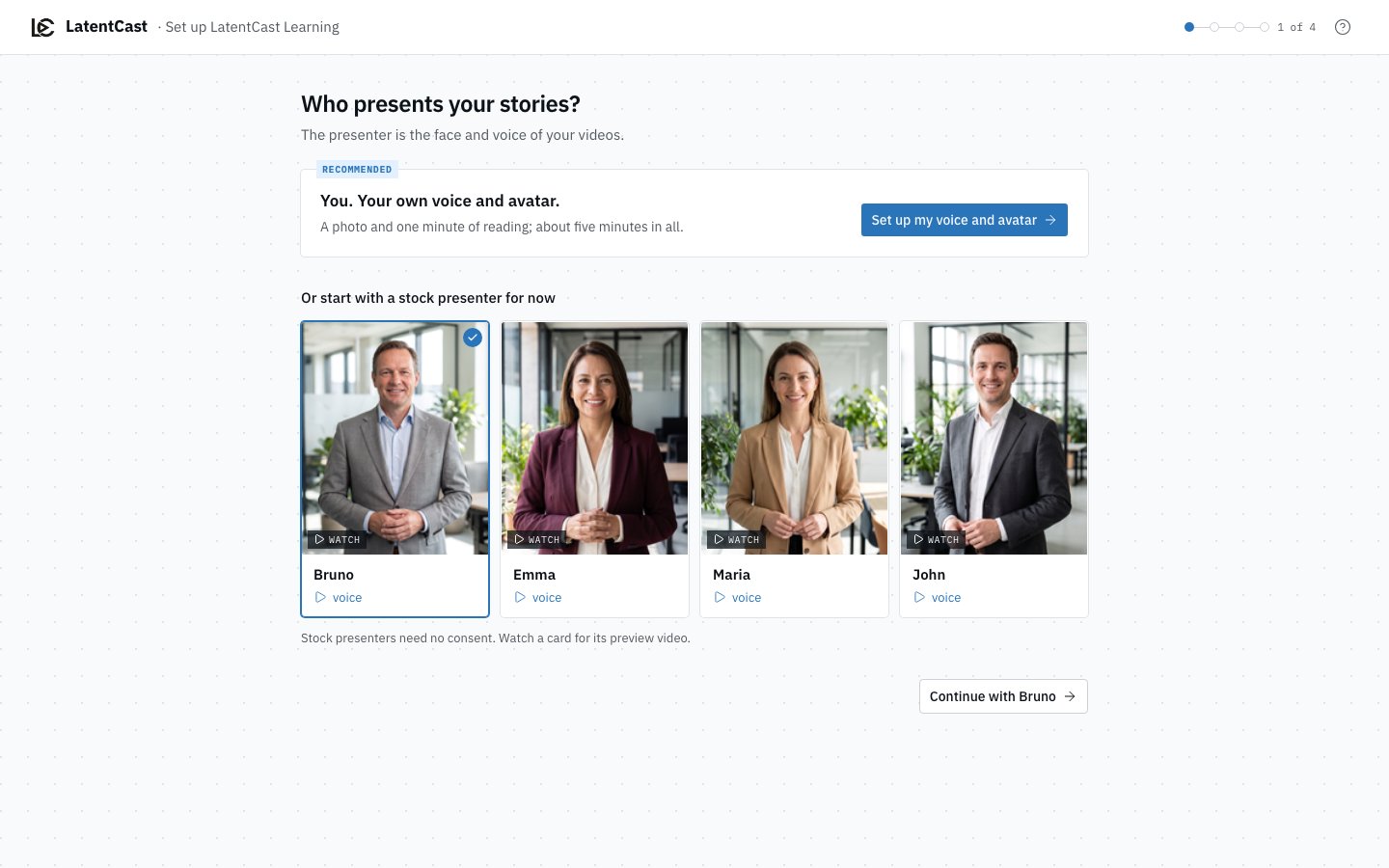
The first screen: your own avatar and voice, or a stock presenter for now. Bruno is picked until you choose.
- Your own voice and avatar, recommended. Press Set up my voice and avatar: a photo, then one minute of reading, about five minutes in all. These are the same pages as under Avatars and Voices, with the same box to tick that it is you. For the voice you choose Clone my voice, Link an existing voice or Stock voice. See Your avatar and Creating your voice.
- A for now. Four ready-made presenters, Bruno already picked. Watch plays a preview video, voice a sample. Press Continue with and the name, and record your own whenever you like.
For the first admin of a new organization
Two screens follow the presenter. Both have Skip for now. Set up your company. Check the Website: LatentCast reads it to make your organization’s , and the first scan starts by itself. You can go on while it runs: the kit arrives on its own. Pick a Style and a Language, and for some languages the . The style and the language are your organization’s defaults; each new story still asks for its own. Press Continue.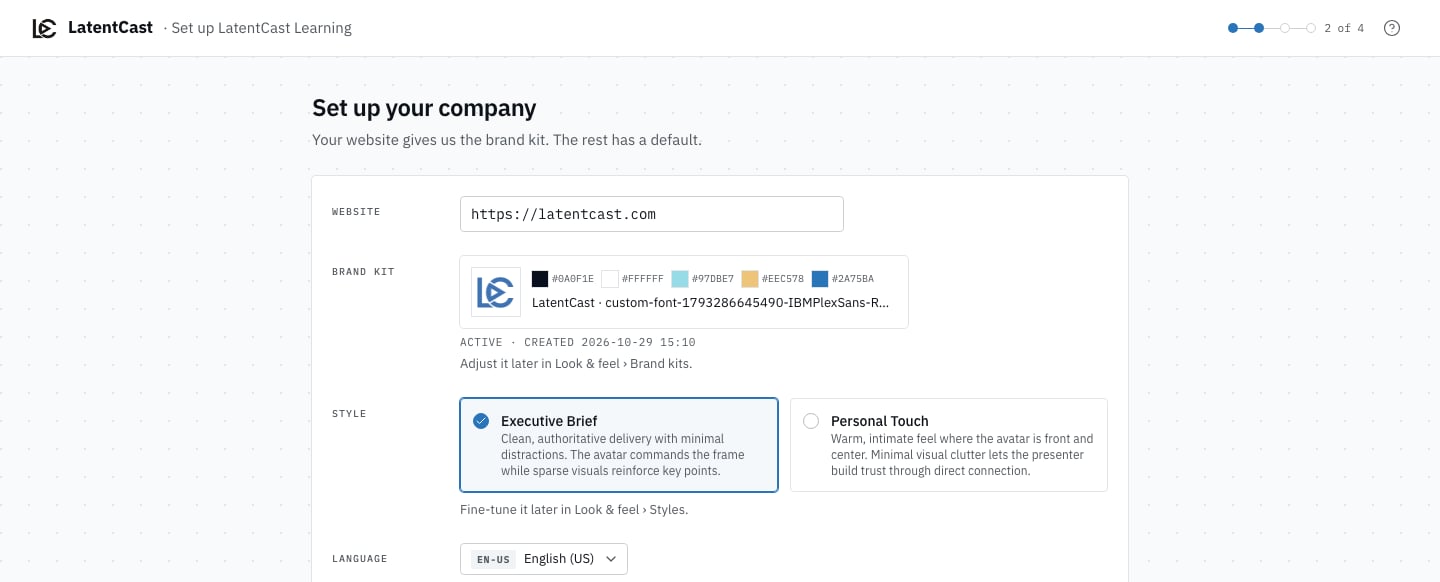
Set up your company: the website, the brand kit it gave, the style and the language.
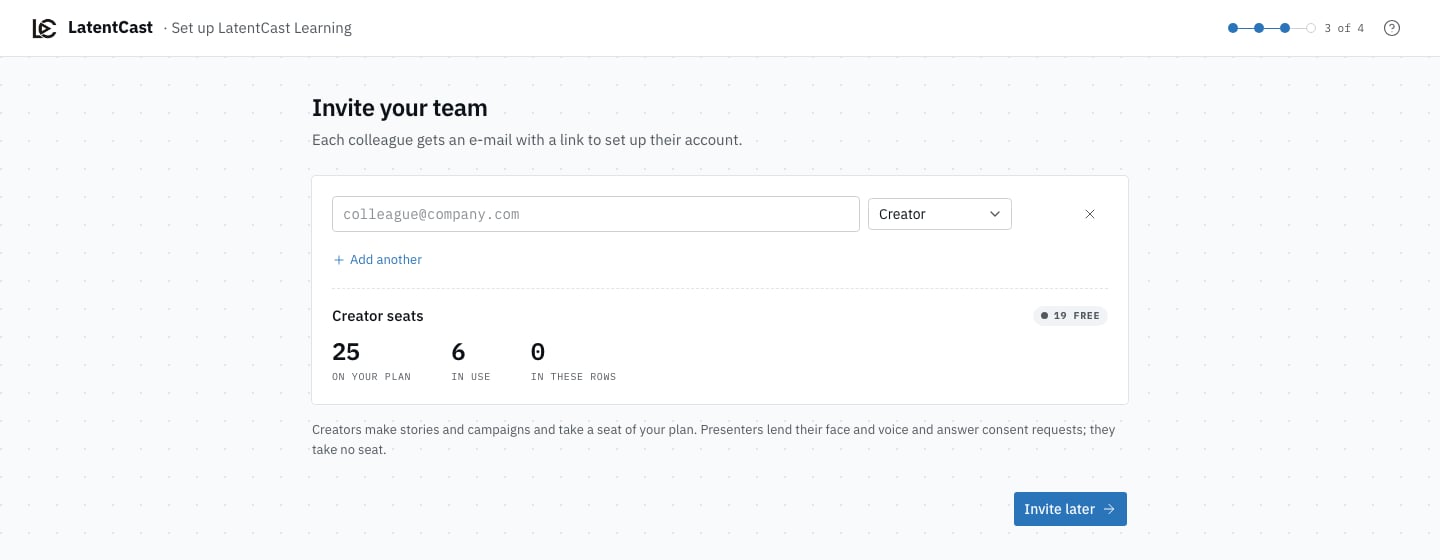
Invite your team: an email address and a role per row, and the creator seats they would take.
The welcome video
The last screen plays a short video in its own player: Here is how LatentCast works for creators and admins, Here is what presenting means for presenters. Press Go to dashboard when you are ready, watched or not. A presenter who already has a casting request waiting does not get the video: the welcome opens the request instead, with the avatar and voice you just chose already selected. See You have been cast.Skip for now, and coming back
Close the tab halfway and the welcome picks up where you left it at your next sign-in. Once you are through, it does not come back. Whatever an admin skipped stays on the Dashboard as one line, SETUP · 0 OF 2 or 1 OF 2, with what is left and Finish, which reopens that screen. The line goes once both screens are done.
The setup line on an admin's Dashboard, while the company and team screens wait.
Next
How LatentCast works
The whole journey in one picture.
Your dashboard
What waits for you, and where to start your first campaign.