

On-screen events
are the titles, highlighted phrases, figures and logos that appear at chosen moments. Ask the chat what a scene has before changing anything.“What’s on screen in scene 2?”Everyday edits happen as you ask: change the wording of a title, move a highlight to a different phrase, hide an event, restyle it, or shift when it appears. Creating one is just as direct.
“Add a data point showing 216% when I say the growth figure.” “Put the Contoso logo on screen when I mention the partnership.”Logos are worth a special mention: name a company and the system finds and fetches its official logo. If the name is ambiguous, give the website and it will use that.
Hiding beats deleting. A hidden event is off screen and recoverable. A deleted one is gone, and
its timing is given back to the scene. The chat offers to hide when you ask to delete.
Timing an event yourself
Events are timed for you. When a story is produced, every event is anchored to the words it belongs to and appears a moment before those words are spoken. Most stories never need this section. When you do want a hand on it, because you added an event or one lands a beat early or late, open the scene’s Events tab and select the event. The panel shows a start and an end time, and a Trigger words button next to them. Use the button, not the boxes.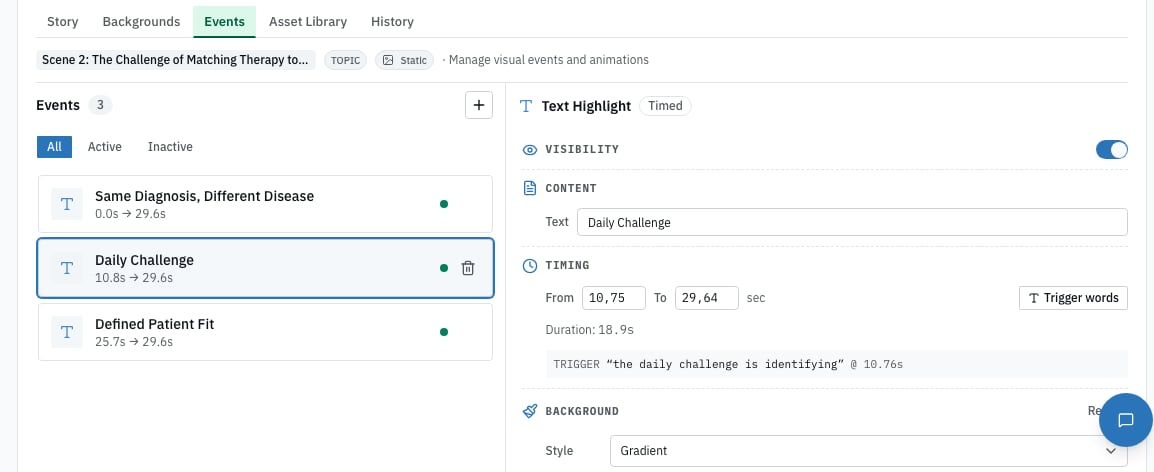
An event selected on the Events tab. The panel shows its timing and the trigger words it is anchored to.
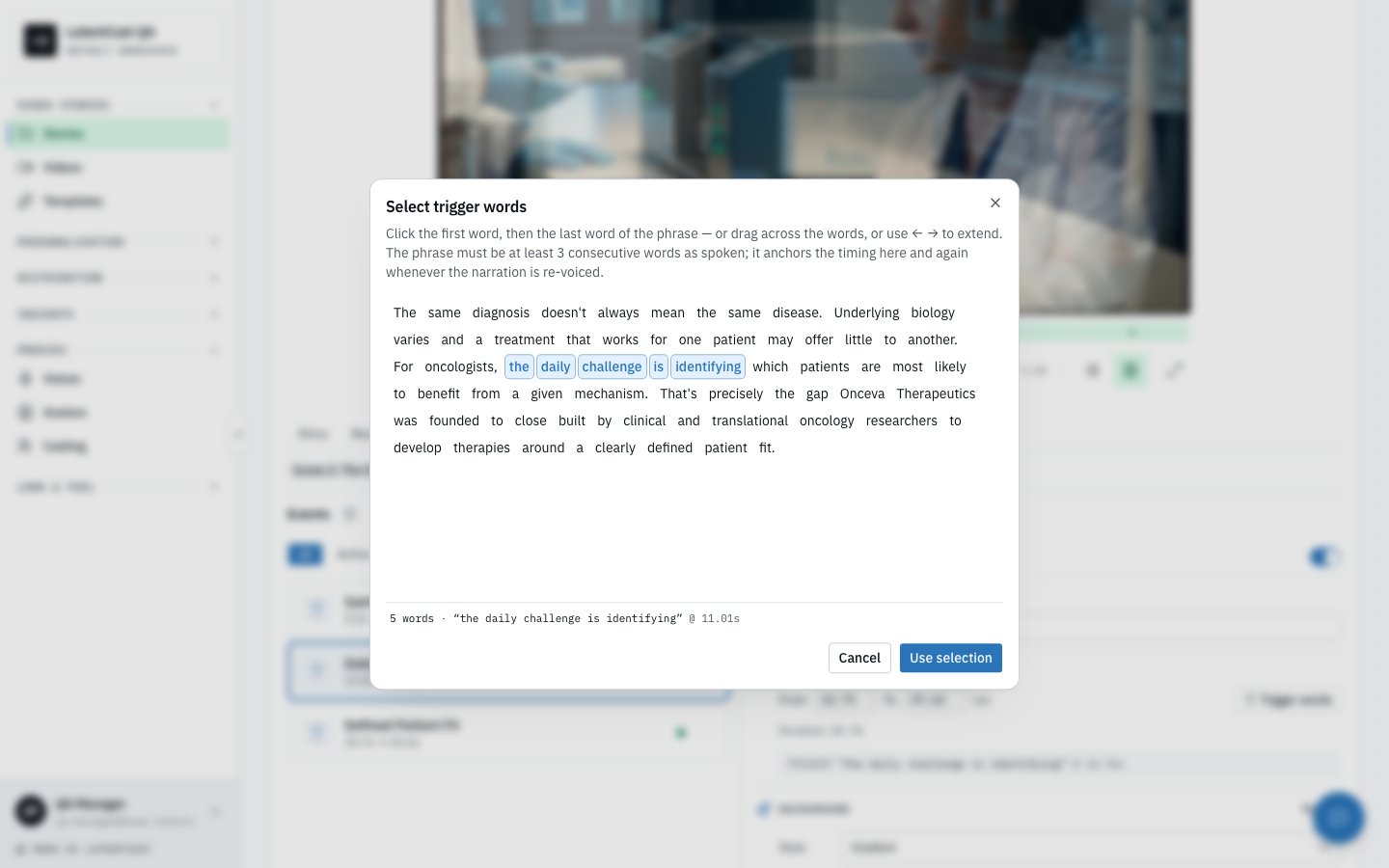
Pick the phrase the event belongs to. Three words or more, in the order they are spoken.
Three words or more, spoken in that order. The picker will not accept less, and the phrase is
checked against the recording before it is saved. If the words are not spoken together, it says so
and keeps the previous timing.
The presenter, scene by scene
Three settings, each per scene:- Where they stand — left, right, or wherever suits the background.
- How large they appear.
- Whether they appear at all — a scene can run without them.
Copying a presenter setup across scenes
“Put the presenter bottom-right at the same size in every scene.”One card, one approval, one undo for the whole story.
Scene order
Hiding a scene keeps it in the story but takes it out of the video. Useful when you are not sure whether a section earns its place: hide it, watch, decide. Reordering does what it says, with two fixed points: the opening stays first and the closing stays last. That is deliberate, since a story that opens on its third topic rarely works.Scene numbers do not shift when you hide one. Hide scene 3 and the next one is still scene 4.
Because of that, it is safer to refer to scenes by their title than by their number when you ask for
a change.
Next
Reviewing and rendering
Watch it properly, then make the video.
Brand kits and styles
The colours, fonts and pacing behind all of it.