

Your brand kit
A kit holds:- Colours — a primary, secondary and accent colour, plus the background and text colours.
- Typography — up to three fonts, with weights. You can also upload your own font files.
- A logo — used in on-screen overlays.
- Brand personality — a few words describing how your brand reads, found while scanning your site and used to guide imagery.
Making one from your website
The quickest way to a kit is to let LatentCast read your website. It pulls out your palette, your typography and your logo, and takes a look at how your site presents itself.1
Start the scan
On Brand kits, press Create brand kit the first time, or Re-scan website on a kit
you already have. The site it reads is your organization’s website address, which is set on the
organization rather than here.
2
Watch it work, or leave
A card walks through reading your styles, finding the logo, capturing the site, analysing the
branding and saving the results. It usually takes under a minute, and you can leave the page and
come back.
3
Check and correct
A scan gets you most of the way. Fix the rest by hand: Edit Colors for the palette, Edit
for the fonts, and Upload for a cleaner logo than the one on your site.
New brand kit does not scan anything. The button at the top of the page makes an empty kit with
placeholder colours, for building by hand. The scan lives behind Create brand kit on an empty
organization, and Re-scan website on an existing kit.
Re-scanning later
When your site is redesigned, Re-scan website offers two paths, and the difference matters:
Because the default creates rather than replaces, nothing appears to change until you set the new
kit as active.
Several kits, one active
An organization can hold as many kits as it likes: one per brand, per product line, or a dated snapshot of the site. Exactly one is active, and that is the one offered by default when you create a story.Changing the active kit does not restyle existing stories. A story keeps the kit it was created
with, so activating a new kit is safe mid-campaign. Editing the contents of a kit a story already
uses does reach that story.
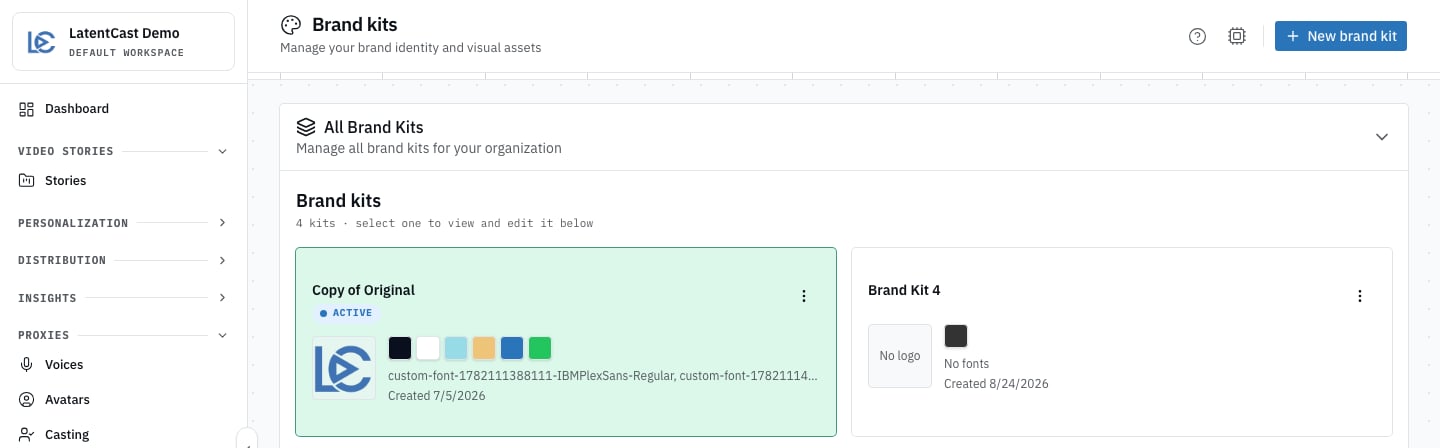
An organization's kits: the active one is marked, and each shows its palette, fonts and logo at a glance.
Styles
A style is the direction of the video rather than its content: how fast it is narrated, how much motion there is, how much text appears on screen, where the presenter stands and how large they are, and how much generated imagery the story may use. Two styles are available today:
Four more are visible and will become available later. They cannot be selected yet and are marked
as such in the wizard.
Variants
A variant is your own copy of a style with your tweaks: “Executive Brief, but slower, and without the b-roll”. It belongs to your organization and leaves the original alone, which is what you want, because the original is shared. Make one from the style’s page, then pick it in the wizard exactly as you would a style.Where you choose them
Both are chosen in step 3 of the creation wizard, and you can change them afterwards by reopening the wizard on the story. Changing only the style rebuilds the visuals and leaves the script alone.Next
Creating a story
Where the kit and the style are chosen.
The parts of a story
What the style is actually shaping.