

Only colleagues with the Organization Admin role see Manage org and these settings. Content
creators, viewers and presenters do not have it in their menu; ask one of your organization’s admins.
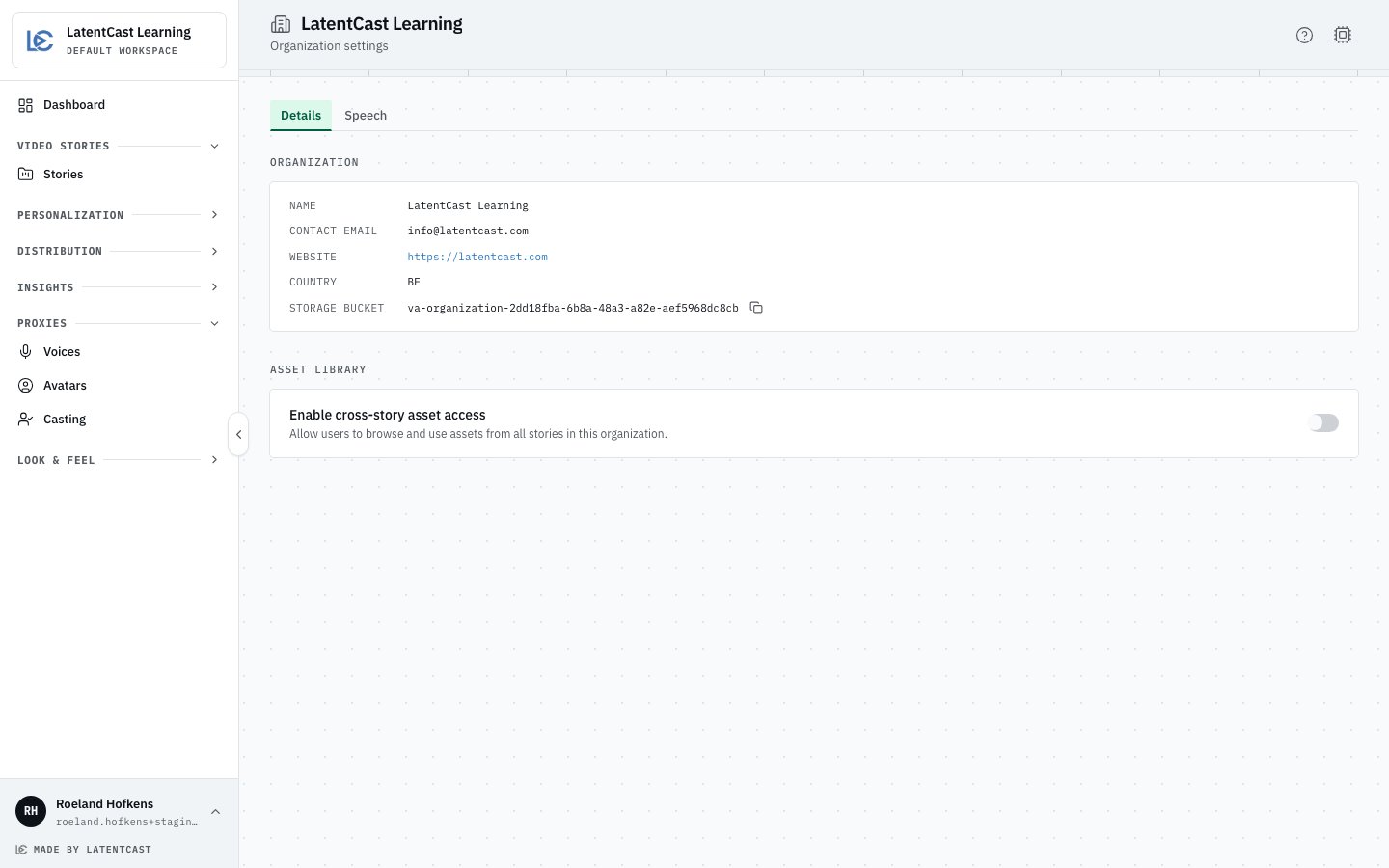
Details: your organization's facts, then the asset library setting.
Details
The first card lists what LatentCast holds about your organization. It shows them; it does not change them.Asset library
Enable cross-story asset access decides which images and videos a story’s asset library offers:- Off: only what belongs to that story.
- On: everything from all your organization’s stories, so a logo or a photo uploaded once can be used in every story.
Speech
A speech profile is an account with one of the speech engines that give your presenters their voice. A your team makes speaks through the profile it was made on. The tab lists your organization’s profiles, LatentCast’s own included; with none, voices use LatentCast’s accounts. Each profile has a display name. That name is all your team sees; which engine is behind it stays on this tab. A profile also shows how much of its engine’s allowance is in use: voices, professional voice clones and, for some engines, edits. The ⋮ menu on a profile offers:- Make default for engine: a new voice made on that engine goes to this profile. Clear default undoes it.
- Test connection: checks that the engine accepts the profile’s key.
- Refresh capacity: reads the allowance again.
- Disable and Enable: a disabled profile is not offered when someone makes a new voice.
- Edit profile and Remove, on a profile with your own account: change its name or key, or delete it with its stored key.
Do
1
Open Manage org
Press your name at the bottom of the sidebar, then Manage org.
2
Open Speech
Press the Speech tab.
3
Connect a profile
Press Connect profile. Give it a display name, pick the engine, and choose Customer account
— your own API key to paste your own key, or Platform account — LatentCast’s key.
4
Test it
In the new profile’s ⋮ menu, press Test connection.
Next
Roles and access
Who can open these settings, and the four roles.
Your plan and its limits
Your plan, its limits and what it includes.