

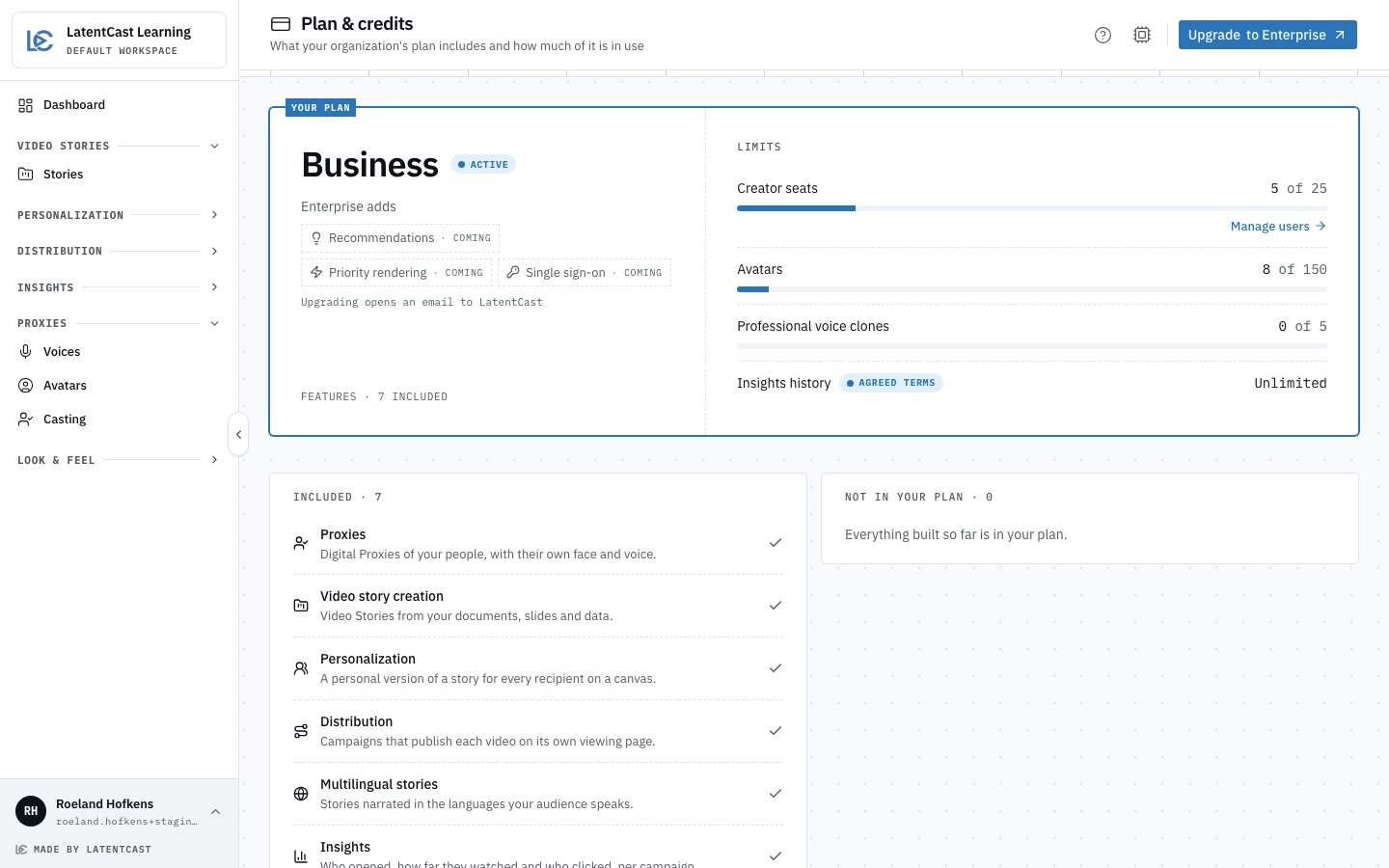
Your plan on the left, with what the next plan adds; your limits on the right, with how much of each is in use.
What your plan counts
Plan & credits shows four limits, each as in use of included, and a meter turns amber when a limit is nearly reached.
Deactivating a colleague frees their seat.
A limit or feature with terms agreed separately with LatentCast is marked agreed terms, or
agreed until and the last day they hold.
What is in your plan
Below the limits, three cards list every feature once:- Included: what your plan has.
- Not in your plan: features that exist, with the plan that includes them and See what it does.
- Coming: features that are not built yet, with the plan that will include them. They appear nowhere else until they exist.
When a feature is not in your plan
A feature your plan does not include stays where it belongs, with a lock: the Engagement entry in the sidebar, the Insights Agent card on the Dashboard, the Pronunciation section on Voices. Open it and you get a page that says what the feature does, with an example, and marked Not in your plan.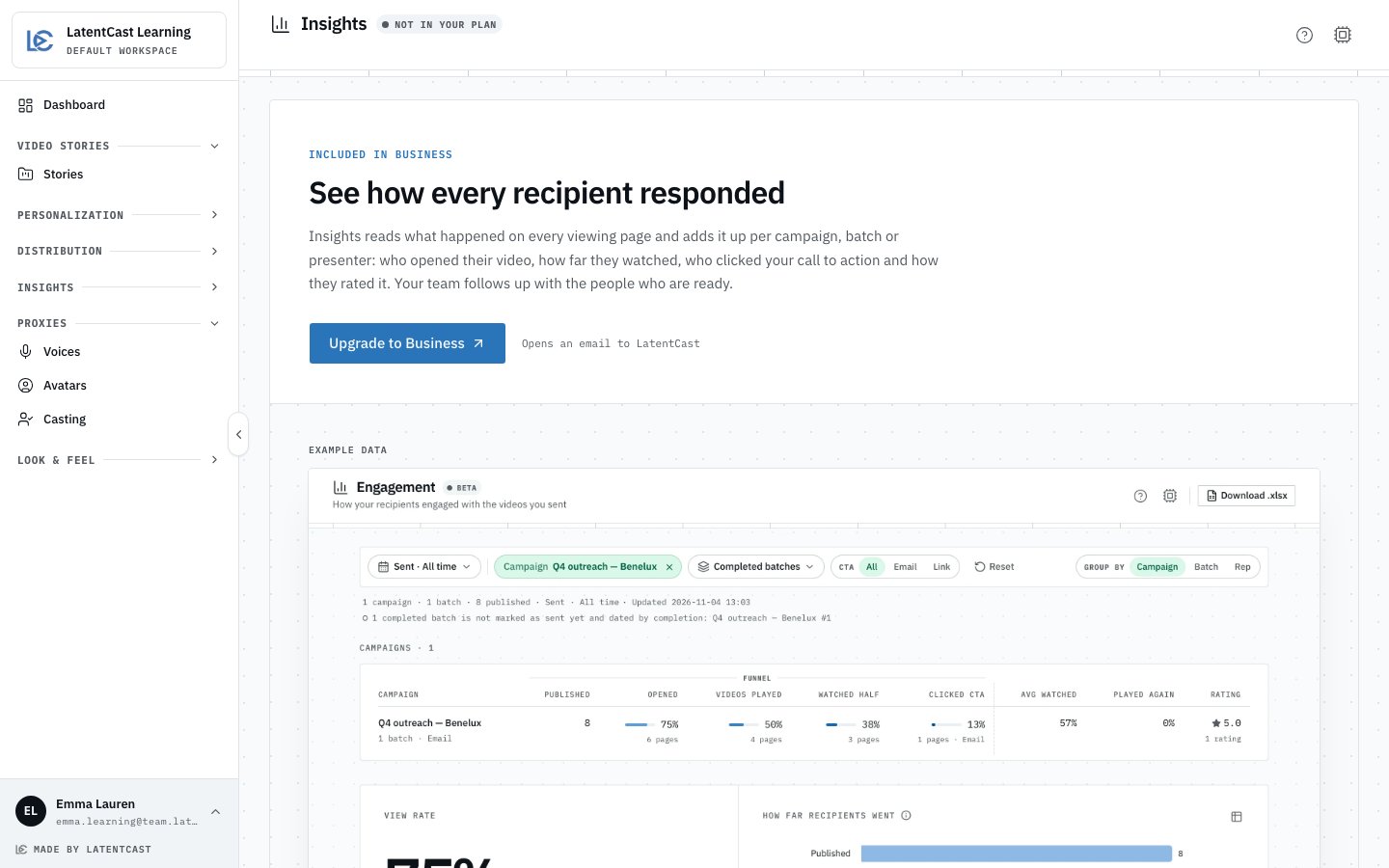
A locked feature: what it does, an example with invented data, and the one way to get it.
- Organization admins and content creators press Upgrade to …, which opens an email to LatentCast with your organization and plan filled in.
- Viewers and presenters press Contact your administrator, which opens an email to your organization’s admins.
When a seat is missing
You can always invite a colleague. If your plan cannot seat everyone you have invited, the Add User dialog says so after sending: the invitation is out, and it can be accepted once a seat is free. A colleague who opens their invitation while no seat is free sees Your account waits for a seat instead of the form. Whoever invited them gets one email, and the same link works again once a seat is free: deactivate a creator who no longer needs one, or upgrade.When every avatar is in use
Avatars shows how many avatars your plan includes, for example AVATARS 150 on your plan · 20 in use · 130 FREE. When all of them are in use, the line ends in FULL, in amber, and the Avatars, Add avatar and Avatar Variants pages say so in an amber banner. A new upload, webcam capture or kept variant is then refused with Not possible on your plan and how many avatars your plan includes and how many are in use. Delete an avatar you no longer use, or upgrade. Choosing which avatar and voice are preferred is never limited. Voices shows the same kind of line for professional voice clones, with the same banner when all of them are in use.Do
1
Open Plan & credits
Press your name at the bottom of the sidebar, then Plan under Billing.
2
Press Upgrade
Top right, Upgrade to … names the next plan; on the largest plan it reads Talk to us.
Both open an email to LatentCast. Only your organization’s admins see the button; content
creators see which admins to ask.
3
Send the email
We get in touch, and your plan changes on our side. Nothing in your organization has to be
redone.
A locked page opened from an older tab shows the lock the first time you use it, without an error.
Next
Roles and access
The four roles, and which ones take a creator seat.
Engagement
What Insights shows once it is in your plan.