

Three ways to add a voice
Press Add Voice. The first step asks which speech engine to use, and how to add the voice. If you are not sure which engine, take the one marked default.
An instant clone is the right starting point. You can always make a professional one later. Pro
clone shows not available on engines that don’t offer it.
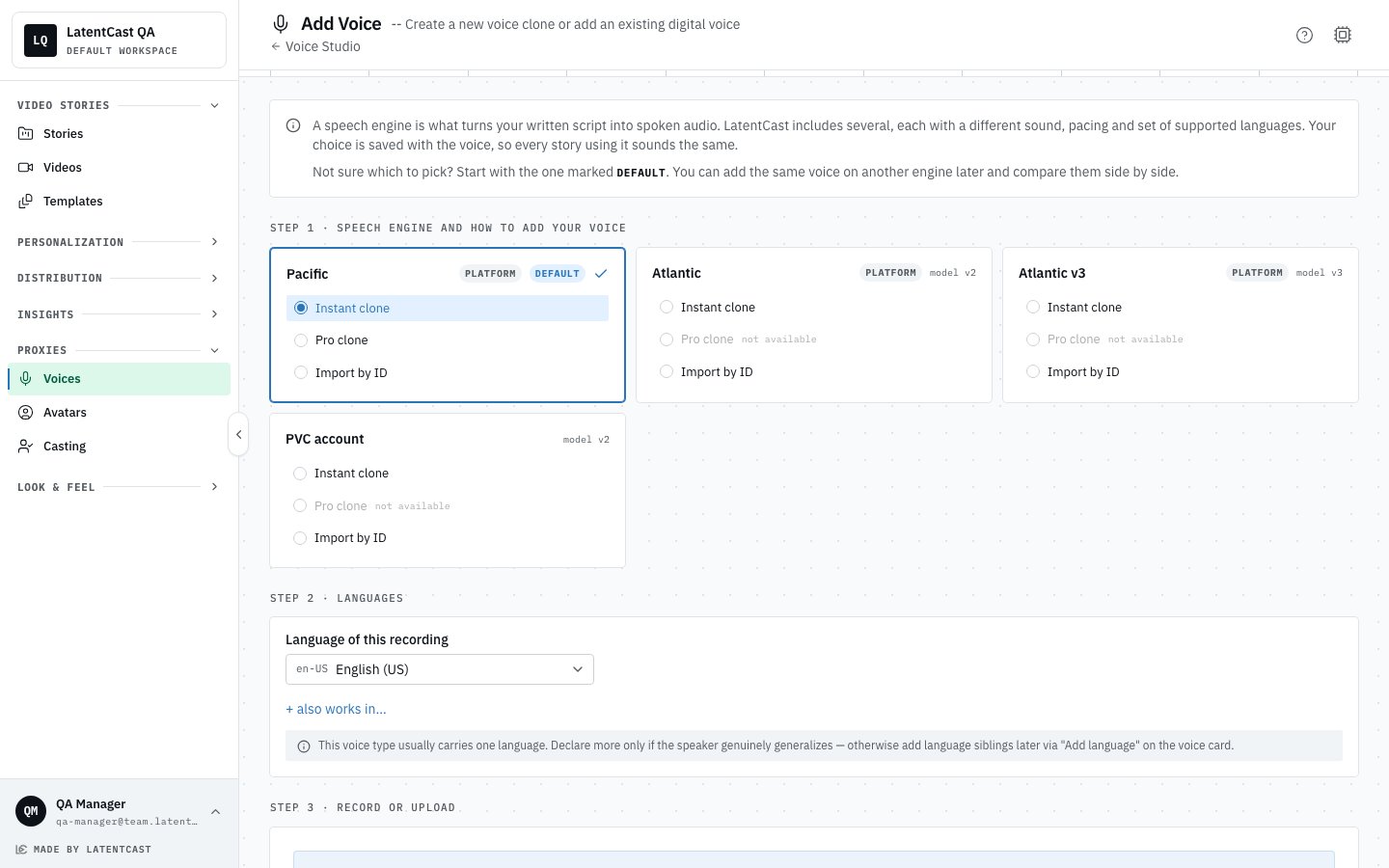
Step 1 of Add Voice: pick an engine, then how to add the voice. Step 2 sets the language of your recording.
Making an instant clone
In the third step, press Record with Script to record in the browser, or Browse Files to upload a recording you already have (up to 10 MB). A few tips appear before you start. Read the script on screen, press Stop when you are done, give the voice a name and press Create Voice Clone. It is usually ready within a minute, in the voice studio.Making a professional clone
A professional clone learns from much more of your voice, so it takes longer. You can do it two ways:- Guided recording. The script comes in blocks of about five minutes of speech each. Record them one at a time with Record this block; you can listen back and Re-record any block. You can also download the script as a PDF to read from.
- Upload files. Upload recordings you already have, for example from a studio. See Uploading studio recordings below.
Recording well
The recording is the input, so its quality is your voice’s ceiling.- A quiet room. No open window, no fan, no café. Soft furnishings help more than equipment.
- Your usual microphone is fine. A recent laptop’s built-in microphone often records better than a phone or earbuds. What matters more is the room, and keeping the same distance. If you are unsure, make a short test and listen back.
- Speak at your normal presenting volume, as if to a customer across the table. Don’t speak softly: the browser turns a quiet voice up for you, so it looks fine while you record, but your voice learns the soft, uneven delivery.
- Read at your normal pace, with a short pause between sentences. Not a newsreader, not a rush.
- Keep the same distance from the microphone throughout.
- Read the whole script you are given. It is written to cover the sounds the system needs.
- Listen back before you accept it. If you would not want a customer to hear it, record again.
We check every recording
Every recording and every uploaded file is checked before it is used, because a voice can only be as good as what it learned from. The check looks at four things:- Loud enough. A quiet recording makes a quiet voice, and turning it up later brings the room noise up with it.
- A quiet background. Noise between your sentences ends up in every video.
- Not distorted. A recording that hit the maximum level (a microphone set too loud, or too close) cannot be repaired.
- Long enough. At least 10 seconds of speech.
Files you chose to use anyway stay marked in the list, so you can replace them later.
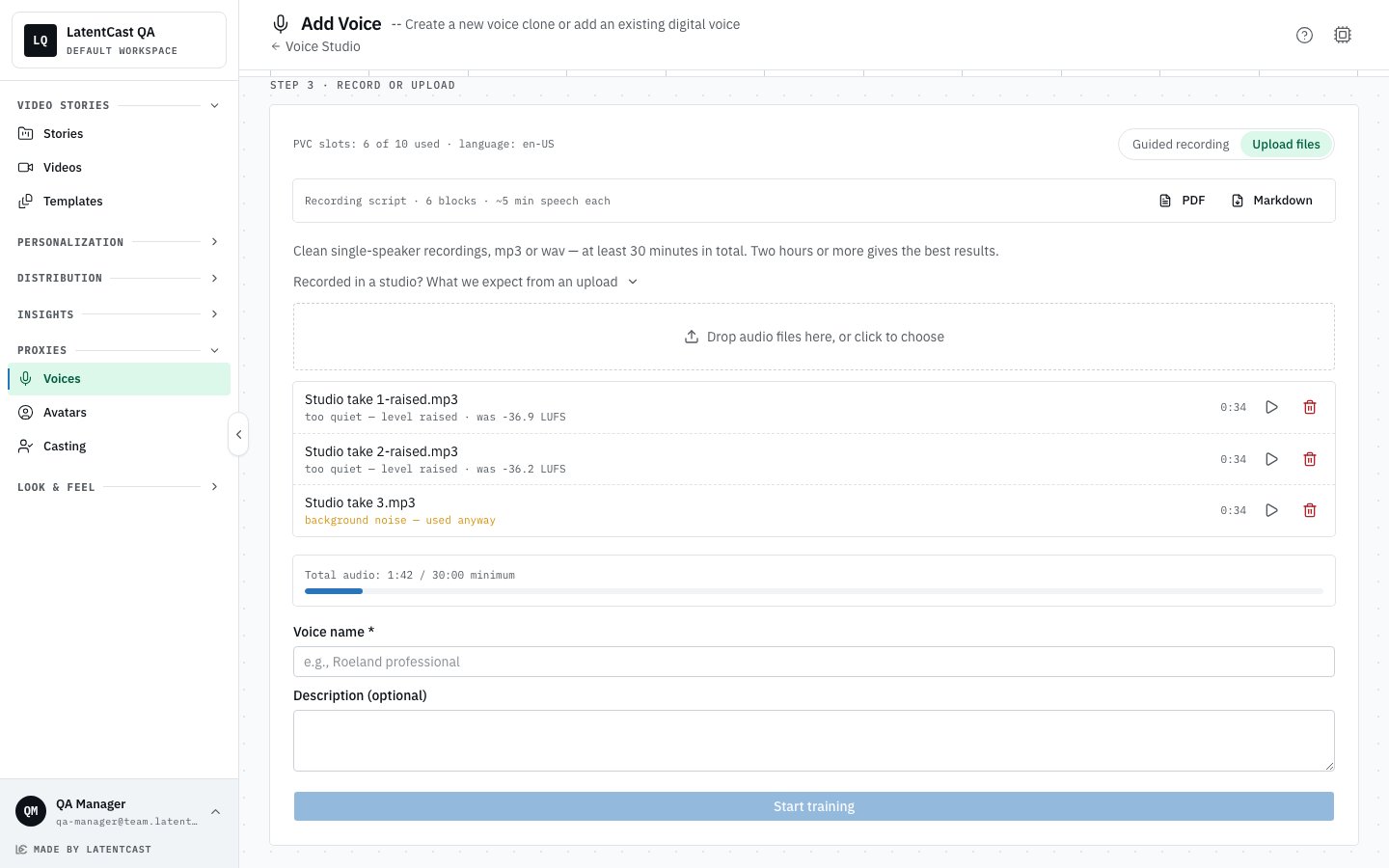
Uploaded files for a professional clone after the check: the line under each file name says what was found. The first two were too quiet, so their level was raised; the third had background noise and was kept anyway.
Uploading studio recordings
For a professional clone you can upload recordings from a studio instead of recording in the app. Ask for:- Level: about −20 LUFS integrated (between −23 and −18), peaks no higher than −3 dB. If in doubt, normalize to −20 LUFS before exporting. Quiet but clean files are raised automatically.
- Raw audio: no compression, noise reduction or EQ. The voice learns every effect.
- The pauses kept in: don’t cut out the silences between sentences. They are where we measure the background noise, and where the voice learns natural pacing.
- One voice, one room: a steady distance to the microphone and a quiet room. WAV, or MP3 at 192 kbps or more.
Next
The voice studio
Choose which voice speaks each language, and try it out.
Giving consent
With an avatar and a voice, agree to the request.