
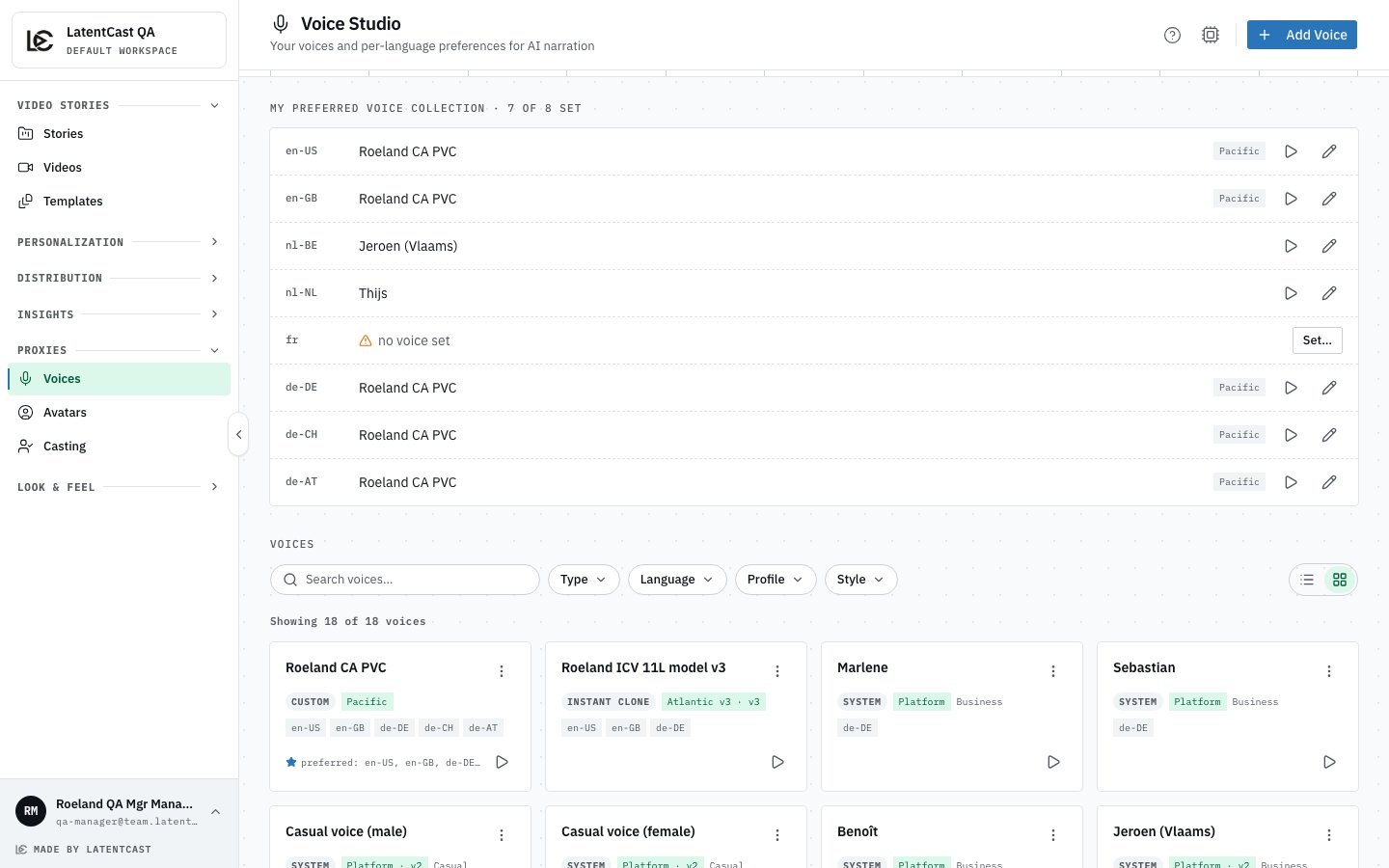
The voice studio: which voice speaks for you in each language on top, and every voice available to you below.
- My preferred voice collection: which voice speaks for you in each language.
- Voices: every voice available to you, yours and the ready-made ones.
- Pronunciation: your dictionaries for names and terms, covered in Pronunciation dictionaries.
Which voice speaks which language
Your has one row per language. Each row shows the voice that speaks for you in that language, with a ▶ button to hear it. The title counts how many languages are set, for example 6 of 9 set. A story picks the voice for its language from this collection automatically, so you rarely think about it. It matters when a story is made in a language that has no voice: that row shows no voice set, and production stops and asks for one rather than speaking the language with the wrong voice. If you are cast for Dutch or French work, set a voice for that language before you accept the request. To change a row, press ✎ (or Set… on an empty row) and pick a voice. Only voices that cover that language are offered. If none do, add one first: when you create a voice you choose its language, and the recording script comes in that language. When you are cast, what gets bound to that outreach is your collection as it stands at that moment. That is why changing it later does not disturb a campaign already running.Your voices
Every voice has a card. It shows the name, what kind of voice it is, the languages it covers, and a ★ when it is in your collection. The kinds:
A professional clone shows training while it is being made. That takes up to three hours, and the
card updates by itself when it is done.
Use the search box and the Type, Language, Profile and Style filters to find a voice in
a long list, and switch between the card view and a compact list.
Trying a voice out
Press ▶ on a card, or Preview & settings in its ⋮ menu. Pick a language to hear a sample sentence, or type your own and press Generate & play. Use a real sentence from your own outreach rather than the sample: your customer’s company name is a better test than a generic phrase. If a name comes out wrong, that is fixable and it is not your voice’s fault. See Pronunciation dictionaries, or tell whoever runs your campaigns. A professional clone can come out of training as more than one version (V1, V2…). Listen to each in the preview and commit the one you like best.Fine-tuning a voice
The same dialog has two tabs:- Settings: how the voice speaks. What you can change depends on the engine: usually its speed, and depending on the engine how steady or expressive it is. Small changes go a long way. Try it with Generate & play before you press Save settings.
- Languages: which languages the voice covers. A voice needs at least one. Only tick a language if the voice really speaks it well; the collection uses this list to decide which voices it offers.
Other actions
The ⋮ menu on a card also has:- Set as preferred…: put this voice in your collection for one or more of the languages it covers. The dialog shows which voice it would replace in each.
- Rename: or click the name on the card. Ready-made voices keep their name.
- Delete: removes one of your own voices; ready-made ones cannot be deleted. It cannot be undone. If a story still uses the voice, you are told to change that story’s voice first.
Next
Giving consent
With an avatar and a voice, agree to the request.
Creating your voice
Add another voice, for example for a new language.