

Do
1
Define the campaign settings
On station 05, press Define settings. Four steps. Step 1, Profile & automation: the
campaign’s Personalization Profile is already there. Set three switches. Create proxy videos
renders the presenter for scenes that changed per recipient. Publish to streaming renders and
publishes each finished video on its own. The pauses
after the scripts are written so you can read them first. For a first campaign, switch the
gate on.
2
Pick who goes in the first batch
Step 2, Batches: press Add batch and tick recipients from the Personalization Canvas, up
to 50 per batch. Start small, with a handful of recipients you know well. For a long list,
splits it for you; see Auto batches.
Step 3, Channels: tick the channels you will send on, such as email, LinkedIn or WhatsApp.
This only decides which outreach copy gets written. Step 4, Review: check the summary and
save.
3
Launch a batch
Back in the guide, press Run batches. Campaign details opens, with one card per batch.
Press Run on the batch card. When a presenter’s master has not been built yet, a
Master bar comes first and says how long that usually takes; the four bars start after it.
Four bars show progress: Personalize, Proxy, Render, Assets. A pulsing bar is working. The
batch is ready only when all four are done, and ready means sendable.
4
Review the scripts
Optional. With the gate on, the batch pauses after Personalize. The guide offers
Open review, the batch card Review narratives. One card per recipient shows their
opening, the optional context scene and the closing. Edit any box, or press Regenerate for
a fresh take. Press Approve & continue to release the batch.
5
Open the Campaign Manifest and send
When the batch is complete, press Open manifest in the guide, or View manifest on the
batch card. One row per recipient: their video, their
link, GIFs for email and messengers, and the
outreach copy for your channels. Copy any cell, or press Download Excel for an Excel file
shaped for SmartLead and Instantly. Then send through any channel from your own tool, or
integrate the manifest with your scheduler to automate the sending.
6
Mark it as sent
Opening the manifest is its review: the batch card’s button becomes Mark as sent. Press it
once you have sent, to record when. When the manifest of every
completed batch is reviewed, the guide is finished.
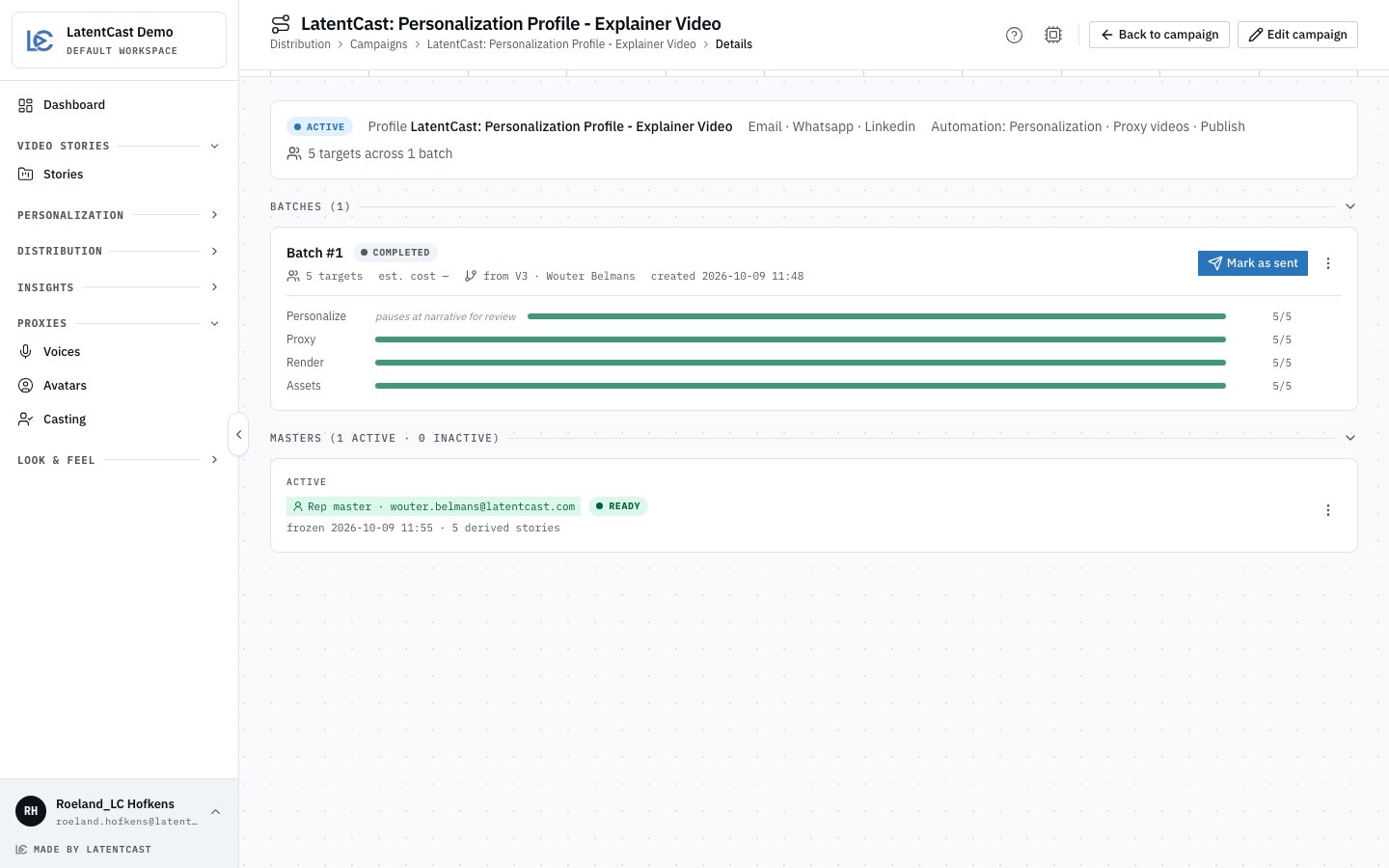
Campaign details: the profile, channels and automation along the top, then one card per batch with its four phase bars. This batch's manifest is reviewed, so its button is Mark as sent.
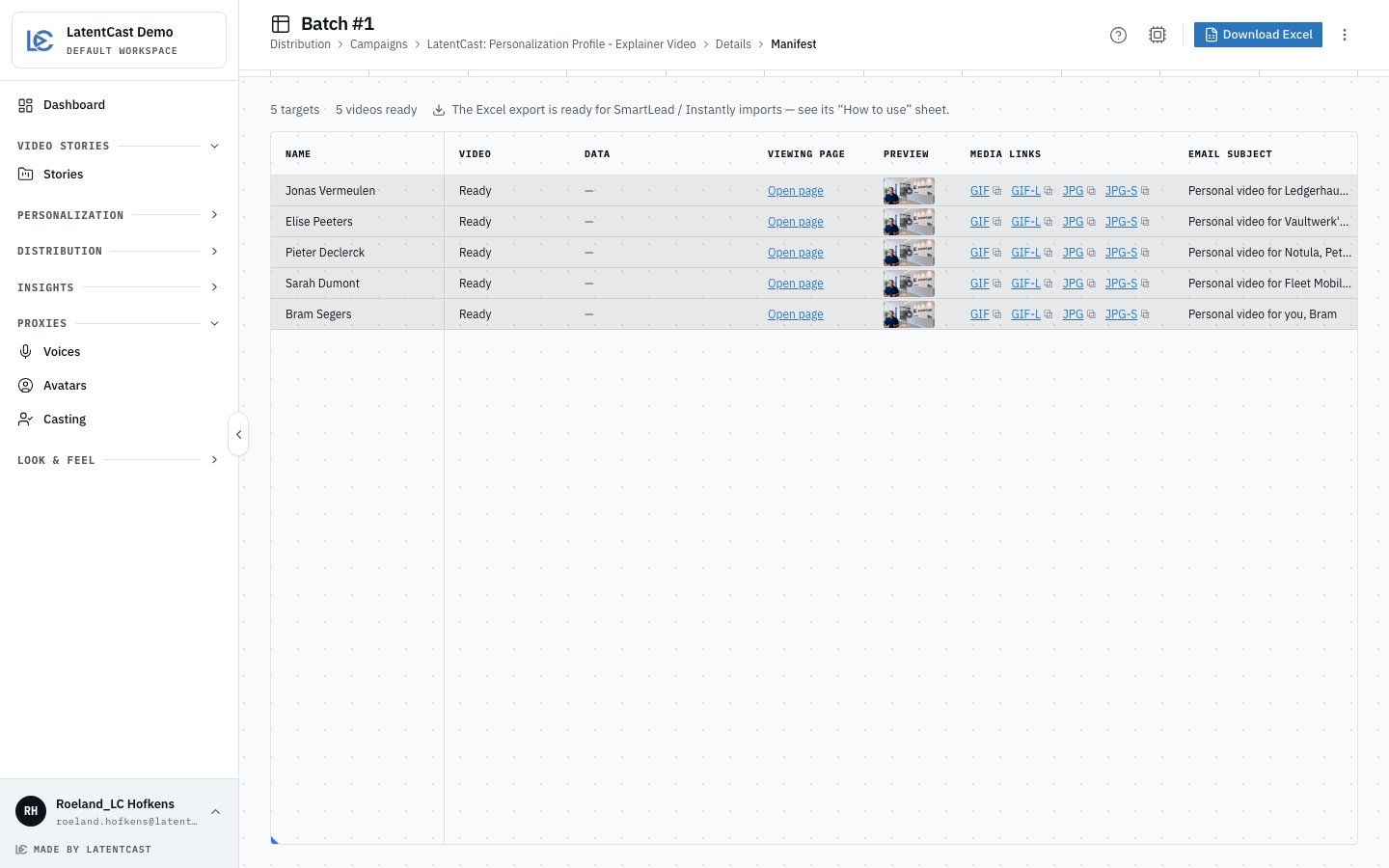
A finished Campaign Manifest: video status, the Viewing Page link, a GIF preview, the media links with copy buttons, and the outreach copy. Download Excel sits top right.
Watch out
Ready means everything. A batch turns complete only when the last GIF is built, not the last
video. Hold your send until then.
A batch runs when you press Run. There is no timer or schedule yet. If something failed, the
batch card shows the reason, and Retry failed re-runs only what failed.