> ## Documentation Index
> Fetch the complete documentation index at: https://www.latentcast.com/docs/llms.txt
> Use this file to discover all available pages before exploring further.
# Your voice
> Your voice, made from a short recording — the two ways to make one, how to record well, and which voice speaks in which language.
**Where:** Proxies ▸ Voices
Your voice reads every script in your videos. You make it once, from a
recording of yourself, in your own account.
## Two ways to make one
Press **Add Voice** and choose how.
| Method | What it takes | When |
| ---------------------- | ------------------------------------------------------ | ------------------------------------------------------------------------ |
| **Instant clone** | About 45 seconds of reading, done in the browser | Almost always. Quick, and good. |
| **Professional clone** | A longer recording, then up to three hours of training | When your voice carries the whole message and you want the closest match |
There is also **Import**, if you already have a voice with a supported provider and want to bring it
across.
An instant clone is the right starting point. You can always make a professional one later.
## Recording well
The recording is the input, so its quality is your voice's ceiling.
* **A quiet room.** No open window, no fan, no café. Soft furnishings help more than equipment.
* **A headset or your phone's earbuds** beats a laptop microphone.
* **Read at your normal pace**, the way you would speak to a customer. Not a newsreader, not a rush.
* **Read the whole script** you are given. It is written to cover the sounds the system needs.
* **Listen back before you accept it.** If you would not want a customer to hear it, record again.
 ## Which voice speaks which language
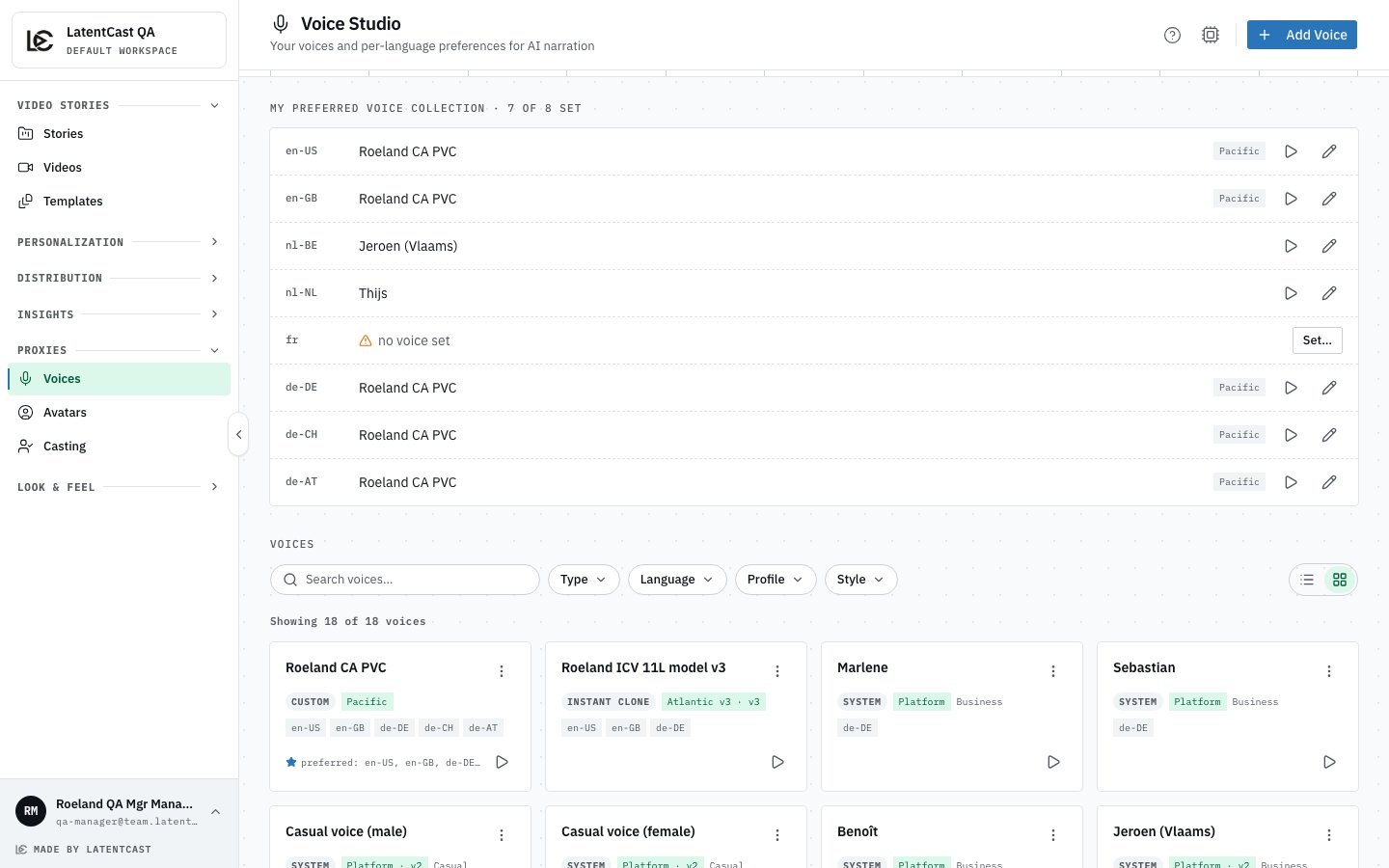
Your voice collection says which of your voices speaks for you in
each language. A story picks the voice for its language automatically, so you rarely think about it.
It matters when a story is made in a language you have no voice for. Production stops and asks for
one rather than speaking the language with the wrong voice. If you are cast for Dutch or French
work, add a voice for that language before you accept the request: when you add a voice you choose
its language first, and the studio gives you a recording script in that language to read.
When you are cast, what gets bound to that outreach is your collection as it stands at that moment,
which is why changing it later does not disturb a campaign already running.
## Trying it
Every voice card has a preview, where you can type a sentence and hear it spoken. Use a real one
from your own outreach rather than the default sample: your customer's company name is a better test
than a generic phrase.
If a name comes out wrong, that is fixable and it is not your voice's fault. See
[Pronunciation dictionaries](/docs/guides/names/pronunciation-dictionaries), or tell whoever runs your
campaigns.
## Marking your usual voice
One voice is marked **preferred**. That is the one bound by default when you are cast, and the one
used when nothing more specific applies.
## Next
You have both halves now. Agree to the request.
The other half of your presence.
## Which voice speaks which language
Your voice collection says which of your voices speaks for you in
each language. A story picks the voice for its language automatically, so you rarely think about it.
It matters when a story is made in a language you have no voice for. Production stops and asks for
one rather than speaking the language with the wrong voice. If you are cast for Dutch or French
work, add a voice for that language before you accept the request: when you add a voice you choose
its language first, and the studio gives you a recording script in that language to read.
When you are cast, what gets bound to that outreach is your collection as it stands at that moment,
which is why changing it later does not disturb a campaign already running.
## Trying it
Every voice card has a preview, where you can type a sentence and hear it spoken. Use a real one
from your own outreach rather than the default sample: your customer's company name is a better test
than a generic phrase.
If a name comes out wrong, that is fixable and it is not your voice's fault. See
[Pronunciation dictionaries](/docs/guides/names/pronunciation-dictionaries), or tell whoever runs your
campaigns.
## Marking your usual voice
One voice is marked **preferred**. That is the one bound by default when you are cast, and the one
used when nothing more specific applies.
## Next
You have both halves now. Agree to the request.
The other half of your presence.